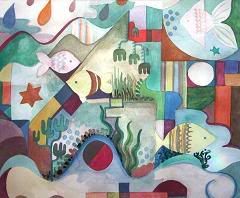
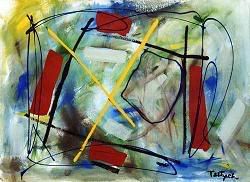
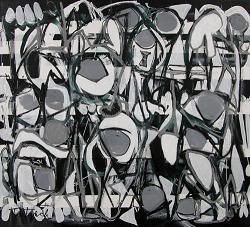
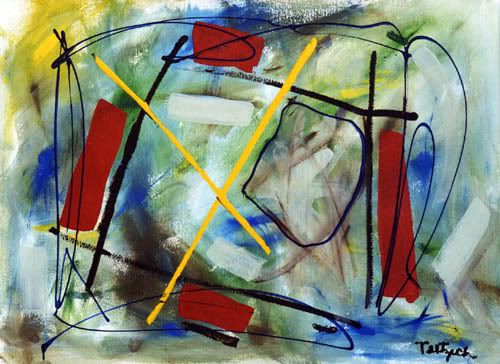
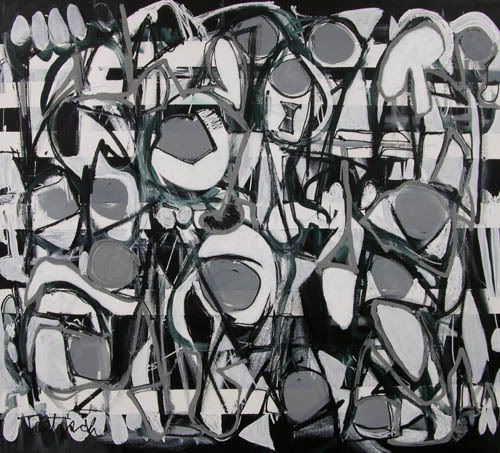
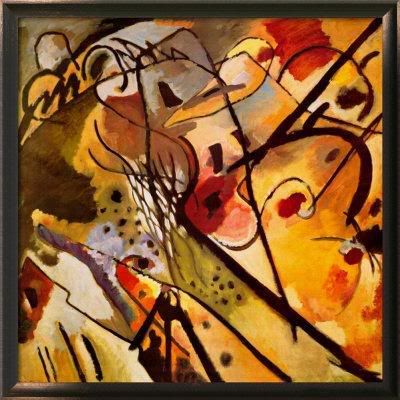
/* Java applet to display sildeshow to images from a given folder in thumbnail form, images can be selected one by one and can be enable/disable slideshow of images. The thumbnail images are placed in slides folder, the download button(rectangle) downloads the images from the web server, hence a webserver is required eg : any webserver even tomcat webserver with download folder with images*/
/* Requirements
1. Name of java file : Sildeshow.java
2. Name of images folder : slides
3. Names of images 1.jpg, 2.jpg and so on upto 8.jpg.
3. Name of download folder in webserver : download
4. Download images given below and paste them in slides folder :
1.jpg │2.jpg │3.jpg │4.jpg │5.jpg │6.jpg │7.jpg │8.jpg
5. Download images given below and paste them in download folder in webserver :
1.jpg │ 2.jpg │ 3.jpg │4.jpg │5.jpg │6.jpg │7.jpg │8.jpg
Java Code for Sildeshow
import java.applet.*;
import java.awt.*;
import java.awt.event.*;
import java.net.*;
public class Slideshow extends Applet implements Runnable
{
// Variable Declaration
Thread runner;
boolean left,right,click,auto;
boolean but0,but1;
boolean b0,b1;
boolean waitMessage = true;
String str_desc[] = { // Display Messages
" This is an Abstract piece.Painted on:20/11/86.",
" This picture is an Abstract work.Painted on:10/1/89.",
" This picture is a Canvas oil painting (15/8/92).",
" This is a Pastel painting (2/10/99).",
" This picture is an Abstract piece.Painted on:6/5/03.",
" This is a Brush painting (2/6/05).",
" This a painted collage (30/1/83).",
" This is my Graphical art piece.Painted on:20/12/08."};
int number=1;
static final int MAX=8;
Image Picture[]=new Image[MAX]; // Image variable
Image Buffer;
Graphics gBuffer; // Graphics Variable
Font a = new Font("Helvetica", Font.PLAIN,12);
Font b = new Font("Dialog", Font.PLAIN,10);
Font c = new Font("Helvetica", Font.BOLD,13);
Rectangle r0=new Rectangle(400,70,50,20); // ON / OFF
Rectangle r1=new Rectangle(400,195,120,20); // Click Here
void loadGraphics()
{ //
Track the status of a number of media objects
MediaTracker t=new MediaTracker(this);
for(int i=0;i< MAX;i++)
{
// Load an image in an applet
Picture[i]=getImage(getCodeBase(),"slides/"+(i+1)+".jpg");
t.addImage(Picture[i],0);
try{
t.waitForAll(0);
}
catch(InterruptedException e)
{
}
waitMessage=false;
}
}
public void init()
{
// Creates an image
Buffer=createImage(size().width,size().height);
gBuffer=Buffer.getGraphics();
// Creates a graphics context for this component
}
public void start()
{
if (runner == null)
{
runner = new Thread (this);
runner.start();
}
}
public void stop()
{
if (runner != null)
{
runner.stop();
runner = null;
}
}
public void run()
{
while(true)
{
try
{
runner.sleep(2500);
}
catch (Exception e)
{ }
if(auto)
{
if(number< MAX)
number++;
else
number=1;
}
repaint();
}
}
public void update(Graphics g)
{ paint(g); }
public void drawArrow(int w,int h,int x,int y,boolean left,boolean over,boolean click)
{
if(click&&over) // set color to yellow on click or mouse over
gBuffer.setColor(Color.yellow);
else
if(over) // set color to orange on mouse over
gBuffer.setColor(Color.orange);
else
// set color to red on click
gBuffer.setColor(Color.red);
if(left)
{
int al[] = {x,x+w,x+w};
int bl[] = {y+h/2,y,y+h};
gBuffer.fillPolygon(al, bl, 3);
}
else {
int ar[] = {x,x,x+w};
int br[] = {y,y+h,y+h/2};
gBuffer.fillPolygon(ar, br, 3);
}
}
public void drawPanel()
{
gBuffer.setColor(Color.white);
gBuffer.fillRect(0,0,size().width,size().height);
// Display Text
drawArrow(40,40,330+70,120,true,left,click);
// Display Left Arrow
drawArrow(40,40,380+70,120,false,right,click);
// Display Right Arrow
gBuffer.setColor(Color.lightGray);
gBuffer.setFont(b);
gBuffer.setColor(auto?Color.orange:Color.lightGray);
gBuffer.fill3DRect(400,70,50,20,!but0);
// Rectangle for ON rectangle
gBuffer.setColor(b0?Color.red:Color.black);
// Color For ON rectangle
String s=auto?"OFF":"ON";
gBuffer.drawString(s,410,85);
gBuffer.setColor(Color.lightGray);
// Download
s="Click Here";
gBuffer.fill3DRect(400,190,120,20,!but1);
gBuffer.setFont(a);
gBuffer.setColor(b1?Color.red:Color.black);
gBuffer.drawString(s,430,205);
// Display Image
gBuffer.drawImage(Picture[number-1],20,20,this);
gBuffer.setColor(Color.black);
gBuffer.setFont(c);
gBuffer.drawString("Slideshow:",300,80);
gBuffer.drawString("Scroll:",300,140);
gBuffer.drawString("Download it!",300,200);
gBuffer.drawString("Description:",300,35);
gBuffer.setFont(a);
gBuffer.drawString(str_desc[number-1],300,50);
}
public boolean mouseDown(Event evt,int x,int y)
{
if(r0.inside(x,y))
{
but0=true; auto^=true;
}
if(r1.inside(x,y))
{
but1=true;
auto=false;
}
if(but1)
{
String link ="http://localhost:8080/download/"+number+".jpg";
try {
// corresponds to an applet's environment
AppletContext a = getAppletContext();
URL url = new URL(link);
// url of the image to be downloaded
a.showDocument(url,"_blank");
}
catch (MalformedURLException e){
System.out.println(e.getMessage());
}
}
if(left)
{
auto=false;
if(number>1)
number--;
else number=8;
}
if(right)
{
auto=false;
if(number< MAX)
number++;
else
number=1;
}
click=true;
repaint();
return true;
}
public boolean mouseUp(Event evt,int x,int y)
{
but0=but1=click=false;
repaint();
return true;
}
public boolean mouseMove(Event evt,int x,int y)
{
Rectangle rl=new Rectangle(330+70,120,40,40);
Rectangle rr=new Rectangle(380+70,120,40,40);
if(rl.inside(x,y))
left=true;
else
left=false;
if(rr.inside(x,y))
right=true;
else
right=false;
if(r0.inside(x,y))
b0=true;
else
b0=false;
if(r1.inside(x,y))
b1=true;
else
b1=false;
repaint();
return true;
}
public void paint(Graphics g)
{
if(waitMessage)
{ g.setColor(Color.blue);
g.drawString("Loading images, please wait...",200,100);
loadGraphics();
}
else
{
drawPanel();
g.drawImage (Buffer,0,0, this);
}
}
}
//< code ="Slideshow" height ="500" width="500">
//< /applet>
Ps: This program works fine, errors if any kindly leavea comment...
Labels: Advanced Java, Applet, Help, Swings, Thread
Loading the Applet
When an applet is loaded, here's what happens:
* An instance of the applet's controlling class (an Applet subclass) is created.
* The applet initializes itself.
* The applet starts running.
Leaving and Returning to the Applet's Page
When the user leaves the page -- for example, to go to another page -- the applet has the option of stopping itself. When the user returns to the page, the applet can start itself again. The same sequence occurs when the user iconifies and then reopens the window that contains the applet. (Other terms used instead of iconify are minaturize, minimize, and close.)
Some browsers let the user reload applets, which consists of unloading the applet and then loading it again. Before an applet is unloaded, it's given the chance to stop itself and then to perform a final cleanup, so that the applet can release any resources it holds. After that, the applet is unloaded and then loaded again.
Quitting the Browser
When the user quits the browser (or whatever application is displaying the applet), the applet has the chance to stop itself and do final cleanup before the browser exits.
An applet can react to major events in the following ways:
1. It can initialize itself.
2. It can start running.
3. It can stop running.
4. It can perform a final cleanup, in preparation for being unloaded.
/* Java Program To Move a Shape say Oval from the bottom of the applet to the center, a vertical scroll in an infinite loop ie once the shape reaches the denter it goes back to the bottom and repeats the path */
import java.awt.*;
import java.applet.*;
public class VertiScroll extends Applet implements Runnable
{
int x,y;
Dimension size;
public void init()
{
//set initial co-ordinates for message
x = 230;
y = 450;
//creates new thread
Thread t = new Thread(this);
t.start();
}
public void run()
{
while (true)
{
try
{
/*initialize size to contain the current size of the applet window */
size = getSize();
/* if co-ordinate of the oval is lesser than reset the height of the applet the x coordinate to a value say 200 else decrement y */
if(y< 200)
y = 450;
y--;
Thread.sleep(20);
}
catch(InterruptedException e)
{
}
repaint();
}
}
public void paint(Graphics g)
{
g.setColor(Color.red);
g.fillOval(x,y,40,50);
}
}
/*< applet code=VertiScroll Width=500 Height = 500>< /applet>*/
Labels: Advanced Java, Applet, Thread
/* Program In Java To Display A text and to scroll the text from left to right, display the text as colored */
import java.awt.*;
import java.applet.*;
public class HoriScroll2 extends Applet implements Runnable
{
String message = "Pay-Per-Play Starts on Feburary....";
int x,y;
Dimension size;
public void init()
{
//set initial co-ordinates for message
x = 300;
y = 50;
//creates new thread
Thread t = new Thread(this);
t.start();
}
public void run()
{
while (true)
{
try
{
/*initialize size to contain the current size of the applet window */
size = getSize();
/* if co-ordinate of the text is lesser than a value say 5 reset the width of the applet the x coordinate to 500 else decrement x */
if(x< 5)
x = 500;
x--;
Thread.sleep(50);
}
catch(InterruptedException e)
{
}
repaint();
}
}
public void paint(Graphics g)
{
g.setFont(new Font("Terminal",Font.BOLD|Font.ITALIC,26));
g.setColor(Color.green);
g.drawString(message,x,y);
}
}
/*< applet code=HoriScroll2 Width=500 Height = 500>< /applet>*/
Labels: Advanced Java, Applet, Thread
/* Program In Java To Display A text and to scroll the text from right to left, display the text as colored */
import java.awt.*;
import java.applet.*;
public class HoriScroll extends Applet implements Runnable
{
String message = "Lionel Cyril ....";
int x,y;
Dimension size;
public void init()
{
//set initial co-ordinates for message
x = 10;
y = 50;
//creates new thread
Thread t = new Thread(this);
t.start();
}
public void run()
{
while (true)
{
try
{
/*initialize size to contain the current size of the applet window */
size = getSize();
/* if co-ordinate of the text is greater than reset the width of the applet the x coordinate to 10 else increment x */
if(x>size.width)
x = 0;
x++;
Thread.sleep(50);
}
catch(InterruptedException e)
{
}
repaint();
}
}
public void paint(Graphics g)
{
g.setFont(new Font("Monotype Corsiva",Font.BOLD,24));
g.setColor(Color.red);
g.drawString(message,x,y);
}
}
/*< applet height="500" width="500" code="HoriScroll">< /applet>*/
Labels: Advanced Java, Applet, Thread
/* Java Program To Make Use of grid layout to displaying components onto the applet. The Components Includes Buttons Text Boxes,Check Boxes. Done using Applets. */
import java.awt.*;
import java.applet.*;
public class GridApp extends Applet
{
TextArea ta;
TextField tf;
Button b1,b2;
CheckboxGroup cbg;
Checkbox cb1,cb2,cb3,cb4;
GridBagLayout gb;
GridBagConstraints gbc;
public void init()
{
gb = new GridBagLayout();
setLayout(gb);
gbc = new GridBagConstraints();
ta = new TextArea("TextArea",5,10);
tf = new TextField("Enter your Name:");
b1 = new Button ("TextArea");
b2 = new Button ("TextField");
cbg = new CheckboxGroup();
cb1 = new Checkbox("Bold",cbg, false);
cb2 = new Checkbox("Italic",cbg,false);
cb3 = new Checkbox("Plain",cbg,false);
cb4 = new Checkbox("Bold/Italic",cbg,true);
gbc.fill = GridBagConstraints.BOTH;
addComponent(ta,0,0,4,1);
gbc.fill = GridBagConstraints.HORIZONTAL;
addComponent(b1,0,1,1,1);
gbc.fill = GridBagConstraints.HORIZONTAL;
addComponent(b2,0,2,1,1);
gbc.fill = GridBagConstraints.HORIZONTAL;
addComponent(cb1,2,1,1,1);
gbc.fill = GridBagConstraints.HORIZONTAL;
addComponent(cb2,2,3,1,1);
gbc.fill = GridBagConstraints.HORIZONTAL;
addComponent(cb3,1,1,1,1);
gbc.fill = GridBagConstraints.HORIZONTAL;
addComponent(cb4,3,2,1,1);
gbc.fill = GridBagConstraints.HORIZONTAL;
addComponent(tf,4,0,1,3);
}
public void addComponent(Component c, int row, int col, int nrow, int ncol)
{
gbc.gridx = col;
gbc.gridy = row;
gbc.gridwidth = ncol;
gbc.gridheight = nrow;
gb.setConstraints(c,gbc);
add(c);
}
}
//< applet code =GridApp width = 500 height = 500>< /applet>
/* Java Program On Flow Layout. The Components Inclues Buttons, TextField, label. Done using Applets.*/
import java.awt.*;
import java.applet.*;
public class FlowApp extends Applet
{
public void init()
{
TextField t1 = new TextField(20);
Label l1 = new Label ("Name");
Button b = new Button("OK");
TextField t2 = new TextField(20);
Label l2 = new Label ("Name");
Button b1 = new Button("OK");
add(l1);
add(t1);
add(b);
add(l2);
add(t2);
add(b1);
}}
//< applet code =FlowApp width = 500 height = 500>< /applet>
/* Java Program To Display Button On An Applet . Done using Applets.*/
import java.awt.*;
import java.applet.*;
public class BorderApp extends Applet
{
public void init()
{
setLayout(new BorderLayout());
Button b1 = new Button("EAST");
Button b2 = new Button("WEST");
Button b3 = new Button("NORTH");
Button b4 = new Button("SOUTH");
Button b5 = new Button("CENTER");
add("East",b1);
add("West",b2);
add("North",b3);
add("South",b4);
add("Center",b5);
}
}
//< applet code =BorderApp width = 500 height = 500>< /applet>
/* Java Program To Draw Image on the applet. Done using Applets. */
import java.awt.*;
import java.applet.*;
public class AppletImage extends Applet
{
Image img;
public void init()
{
String imagename= getParameter("Whilder e Pool");
img = getImage(getCodeBase(),imagename);
}
public void paint(Graphics c)
{
c.drawImage(img,10,10,this);
}
}
//< applet code = AppletImage width = 770 Height = 555>
//< param name = "Whilder e pool " value = "madonnablue6bp.gif">
//< /applet>
/*Java Program To Display Simple Text on the applet, making use of Color class. Done using Applets. */
import java.awt.*;
import java.applet.*;
public class AppletColor extends Applet
{
public void paint(Graphics c)
{
setBackground(Color.blue);
c.setColor(Color.white);
c.drawString("Lionel Is a Cool Boy",100,50);
}
}
//< code =" AppletColor" width =" 350" height =" 150">< / applet >
/*Program Displaying the human face suing basic figures, circles, arcs, lines, etc. Done using Applets.
/* < applet code = "Face" width = 500 height =500>
< /applet> */
import java.awt.*;
import java.applet.*;
public class Face extends Applet
{
public void paint(Graphics g)
{
g.drawString("Hi !!!!!!!!!!!!!!! I Am Ninad.",20,30);
g.drawArc(30,50,200,200,0,360); // Main Face
g.drawArc(82,80,30,30,20,160); //Left Eye Brow
g.fillArc(85,85,25,25,0,360); //Left Eye
g.drawArc(152,80,30,30,20,160); //Right Eye Brow
g.fillArc(155,85,25,25,0,360); //Right Eye
g.drawRect(90,190,80,20); //Mouth
g.drawLine(130,135,115,160); //Nose Left Line
g.drawLine(130,135,145,160); // Nose Right Line
g.drawLine(115,160,145,160); // Nose Base
g.drawString(" ------------- Created By Lionel.",10,350);
}
}
Labels: Advanced Java, Applet, Swings